How do I schedule posts to a Discord channel?
Short answer
In Discord open the channel's settings (the gear), Integrations, Webhooks, make a New Webhook named BoostPoster and press Copy Webhook URL. Paste it into BoostPoster's Connections, Discord, and every post you plan in Poster goes to that channel at its time. Posts take up to 2,000 characters and files up to 20 MB.
Connect DiscordHow do I schedule Discord posts, step by step?
- Make a webhook. In Discord open the channel’s settings (the gear), Integrations, Webhooks, then New Webhook. Name it BoostPoster and press Copy Webhook URL.
Screenshot: Discord, the channel's webhooks
ext-discord-webhookDiscord, the channel's webhooks - Connect it. In BoostPoster open Connections, press Discord and paste the webhook address.
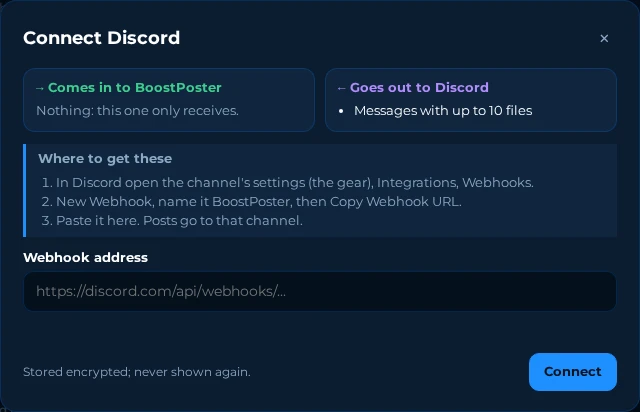
Connections, the Discord window - Plan posts. In Poster drop files on days, write the text and pick the Discord account.
Animation: A picture dragged onto the calendar
app-poster-drag-to-dayA picture dragged onto the calendar
What does Discord take through BoostPoster?
| Content | Limit |
|---|---|
| Text | 2,000 characters |
| Pictures, GIFs and videos | Up to 20 MB |
Checked 23 Nov 2026.
Questions
Does BoostPoster need a Discord bot or my account?
No. A webhook posts into one channel by itself; delete the webhook in the channel's settings to stop it.
Can I post to several channels?
Yes. Make a webhook in each channel and connect each one; every webhook is one account in BoostPoster.
How long can a post be?
Up to 2,000 characters, with files up to 20 MB.